User Management, Staff Invitations & Permission Overrides
The User Management Directory & Hub
The User Management hub (/dashboard/settings/users) serves as your clinic's central administrative directory. From here, clinic owners and administrators can oversee all clinic members across all roles (Owners, Admins, Doctors/Practitioners, and Front Desk Staff), track active vs pending statuses, search users, and initiate new member invitations.
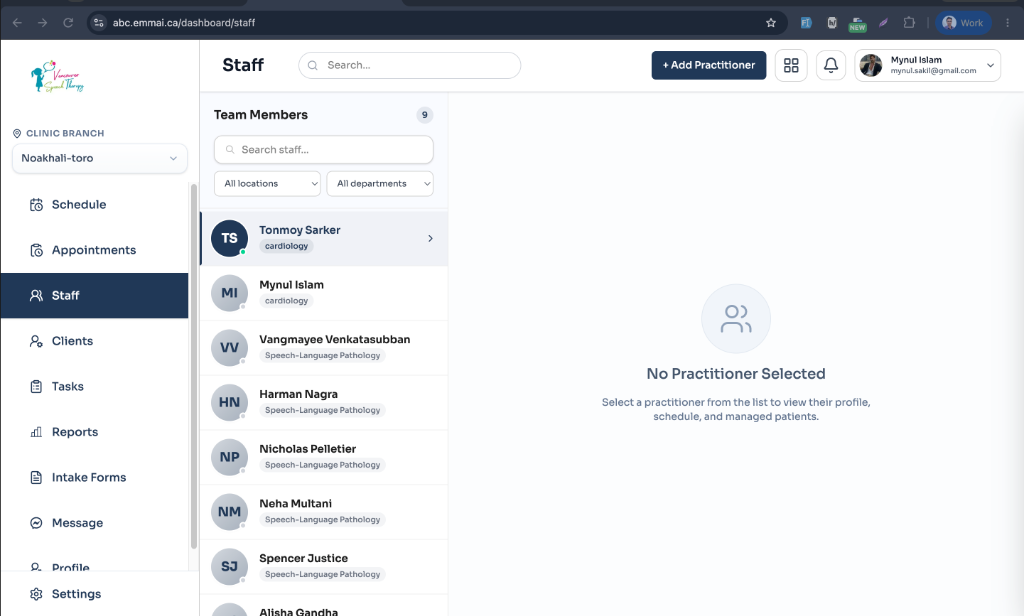
Navigate to Admin Dashboard > Settings > User Management (/dashboard/settings/users).
Use the real-time search field to filter clinic users by first name, last name, or email address.
Review user table columns: Name, Email Address, Assigned Role (Doctor, Staff, Admin, Front Desk), Account Status (Active vs Pending), and Actions.
Click the three-dots action menu on any user row to Change Role, Manage Permissions, or Toggle Account Status (Deactivate/Activate).
Inviting Clinic Administrators & Front Desk Staff (+ Add New User)
To onboard administrative staff, practice managers, or receptionists, clinic owners and administrators can dispatch role-based email invitations directly from the User Management dashboard:
Subscription User Limits
Click the '+ Add New User' button in the top right header of the User Management page.
Fill in the member's First Name, Last Name, and professional Email Address.
Select an assigned role from the dynamic clinic role list: Admin, Front Desk, Staff, or Doctor. (Note: Owner and Client roles are protected system roles and cannot be invited via this modal).
The system automatically validates your clinic's active subscription tier and available user seats before dispatching.
Click 'Invite User'. Emmai dispatches an official invitation email to the recipient's inbox.
Inviting Clinicians & Practitioners (+ Add Practitioner)
Therapy providers and clinicians can be invited through two accessible workflows: the Staff Hub (/dashboard/staff) or the User Management Hub (/dashboard/settings/users). Clicking '+ Add Practitioner' launches the comprehensive practitioner onboarding wizard that configures their clinical environment in one guided step:
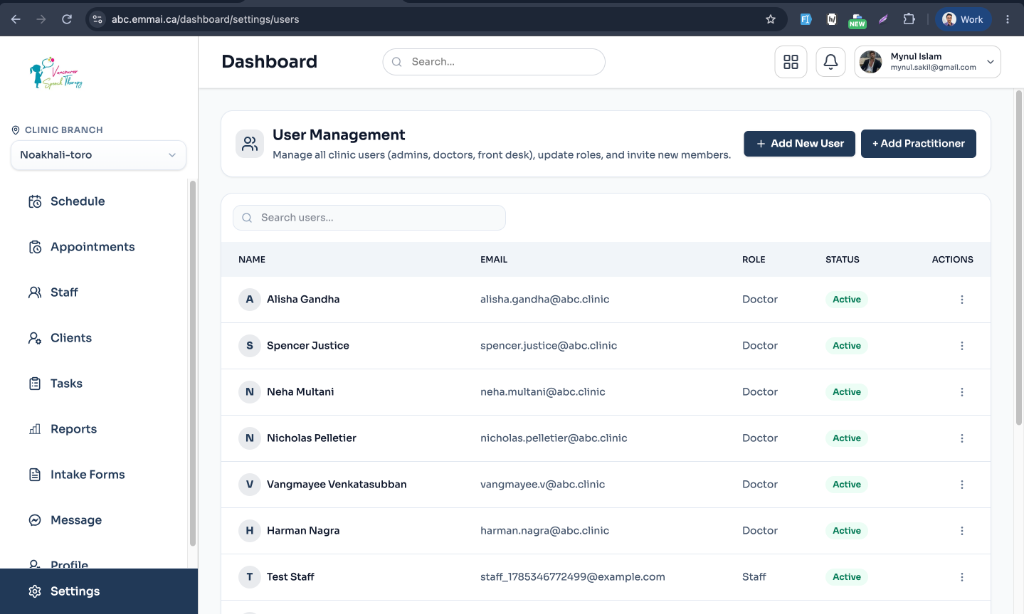
Click '+ Add Practitioner' from either the Staff Directory (/dashboard/staff) header or the User Management (/dashboard/settings/users) header.
Enter the practitioner's Full Name, professional Email, Phone Number, and Practitioner Type (e.g., Full-Time, Part-Time, or Contractor).
Assign Primary Branch & Multi-Branch Allocations: Choose the clinician's home clinic facility and optionally allocate secondary branches.
Select Department & Speciality: Associate the practitioner with their specialty department (e.g., Speech-Language Pathology, Cardiology, Physiotherapy).
Assign Clinical Services: Check off specific treatment types the practitioner is qualified to offer under that department.
Set Initial Shift Days & Timezone: Select regular working days of the week (Mon-Sun), automatically synchronized with the facility's local IANA timezone.
Toggle Online Booking: Decide whether clients can self-schedule appointments with this practitioner on the public booking portal.
Click 'Send Invitation'. Emmai creates the practitioner record in 'Pending' status, links their branches, department, and services, and sends their onboarding invitation email.
The Invitation Email & Account Activation Flow
Whether invited as an Administrator, Front Desk, or Practitioner, the recipient receives an automated, clinic-branded invitation email from Emmai ('Welcome to [Clinic Name]! You are invited as a [Role] to join [Clinic Name]'). The onboarding experience dynamically adapts depending on whether the recipient already has an Emmai account:
Multi-Clinic Access for Clinicians
Scenario A: User Already Has an Emmai Account — The recipient opens the invitation email and clicks 'Go to Portal'. When they log in with their existing Emmai credentials, the platform detects their account and instantly links them to the new clinic. No secondary accounts, duplicate emails, or separate passwords required!
Scenario B: New User (First Time on Emmai) — The recipient's record is initialized in 'Pending' status. They click the secure activation link in the email, which takes them to the account setup portal to create a secure password and activate their profile.
Upon successful login or activation, the user's status updates from 'Pending' to 'Active' across the clinic's User Management and Staff tables.
Granular Permission Overrides & Access Matrix
While standard roles establish a baseline security profile, Emmai provides a comprehensive Permission Overrides engine that allows clinic owners to tailor access on an individual user level. Overrides can be configured from two locations in the platform:
Rule of Absolute Precedence
Option A (From User Management): Click the Actions menu (three dots) next to any user row in /dashboard/settings/users and select 'Manage Permissions'. A slide-over Permissions Drawer will open.
Option B (From Staff Profile): Navigate to /dashboard/staff, click any team member from the directory, and select the 'Permissions' tab.
Browse permission categories: Scheduling, Appointments, Clients, Clinical Notes & Charting, Billing & Invoicing, Services & Catalog, Staff Management, and Audit & Settings.
Inspect the real-time status badges for each capability:
• 'Base' (Gray badge): Inherited automatically from the user's assigned role.
• 'Override' (Blue badge with checkmark): Explicitly granted to this specific user by an administrator.
• 'Denied' (Red badge with cross): Explicitly denied to this user, revoking access even if their base role permits it.
• 'None' (Muted badge): Access is not granted by base role or override.
Toggle the checkbox next to any permission to apply an override. The change saves immediately to the database.
Was this guide helpful?
Your feedback helps our clinical documentation team improve.