Booking Appointments: 'Create Schedule' & 'Scheduled Booking'
The Clinic Schedule Grid
The calendar header contains the essential buttons used for scheduling visits, switching views, and filtering staff.
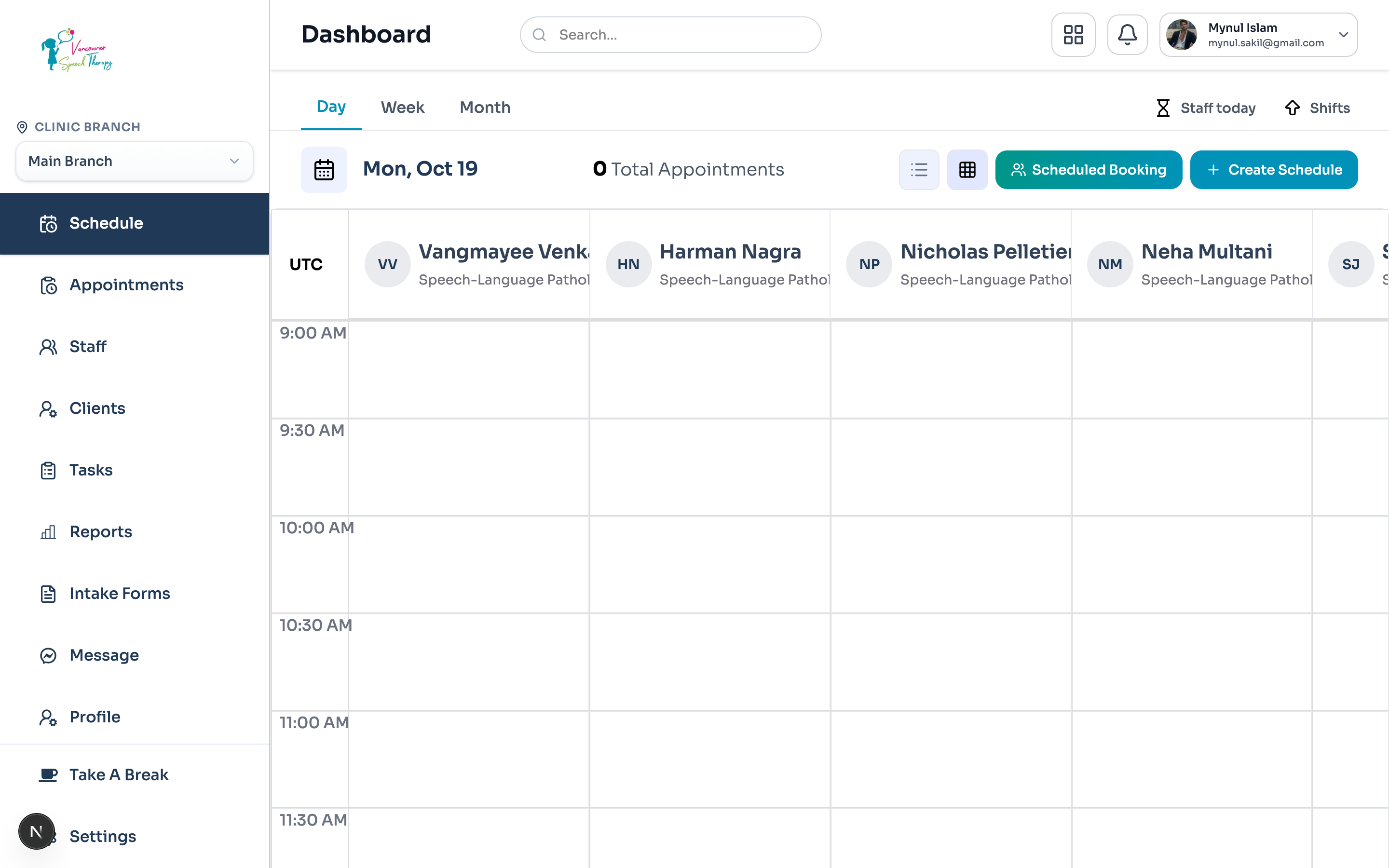
Creating a Single Appointment: 'Create Schedule'
In Emmai, appointments are created using the 'Create Schedule' button located on the top-right of the dashboard header:
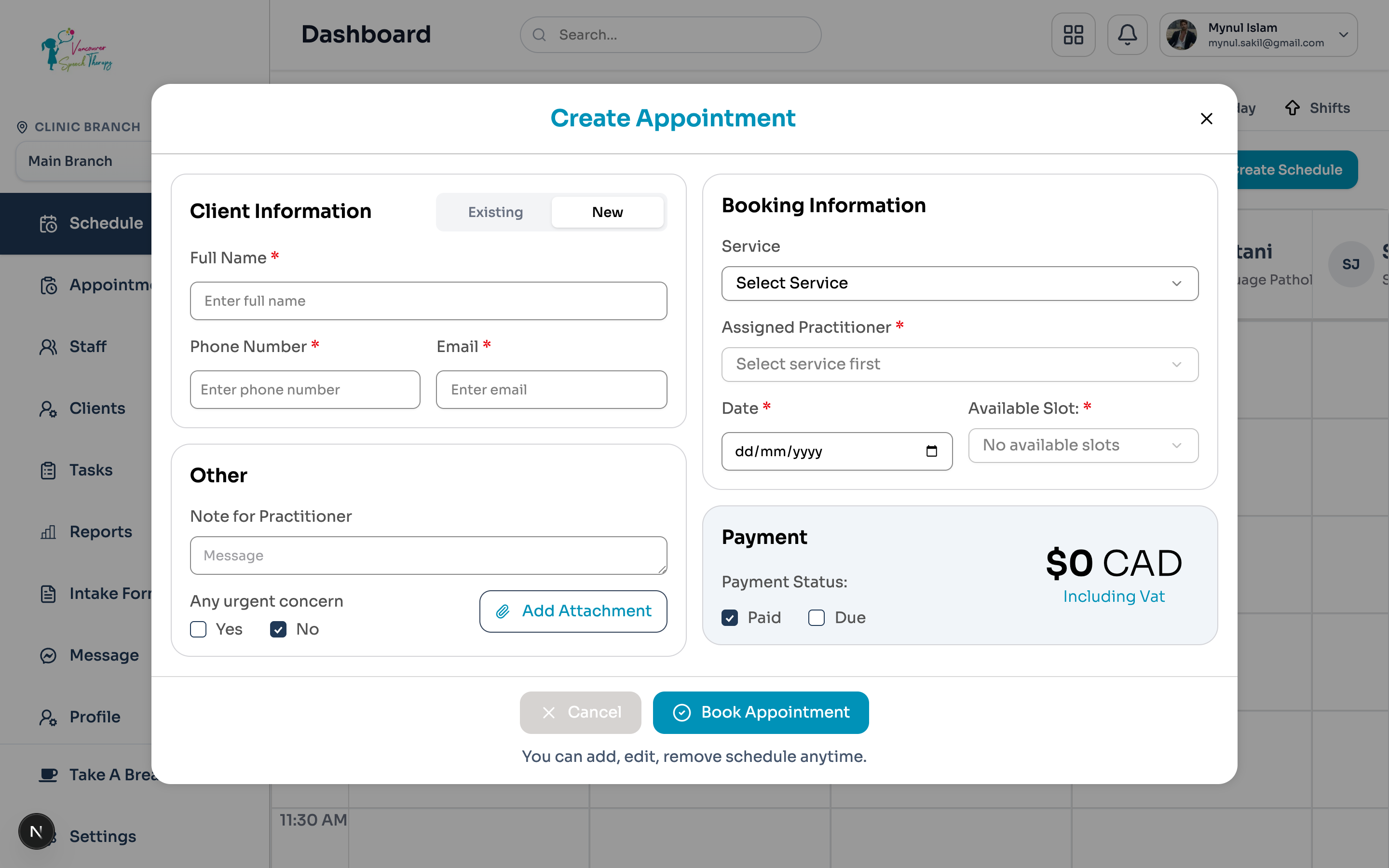
Emmai Schedule Rule
Click the dark navy 'Create Schedule' button in the top-right header.
In the Create Schedule modal, select the Patient from the searchable autocomplete dropdown (or click 'Add New Patient').
Select the Practitioner and Branch location.
Choose the Service / Treatment type (duration and fee automatically populate).
Select the Appointment Date and Time Slot.
Choose visit modality: In-Person or Telehealth Video Room.
Click 'Save Schedule'. An automated confirmation email and SMS will immediately dispatch to the patient.
Multiple & Recurring Visits: 'Scheduled Booking'
When booking a patient for multiple recurring visits, therapy series, or multi-date blocks, use the 'Scheduled Booking' tool:
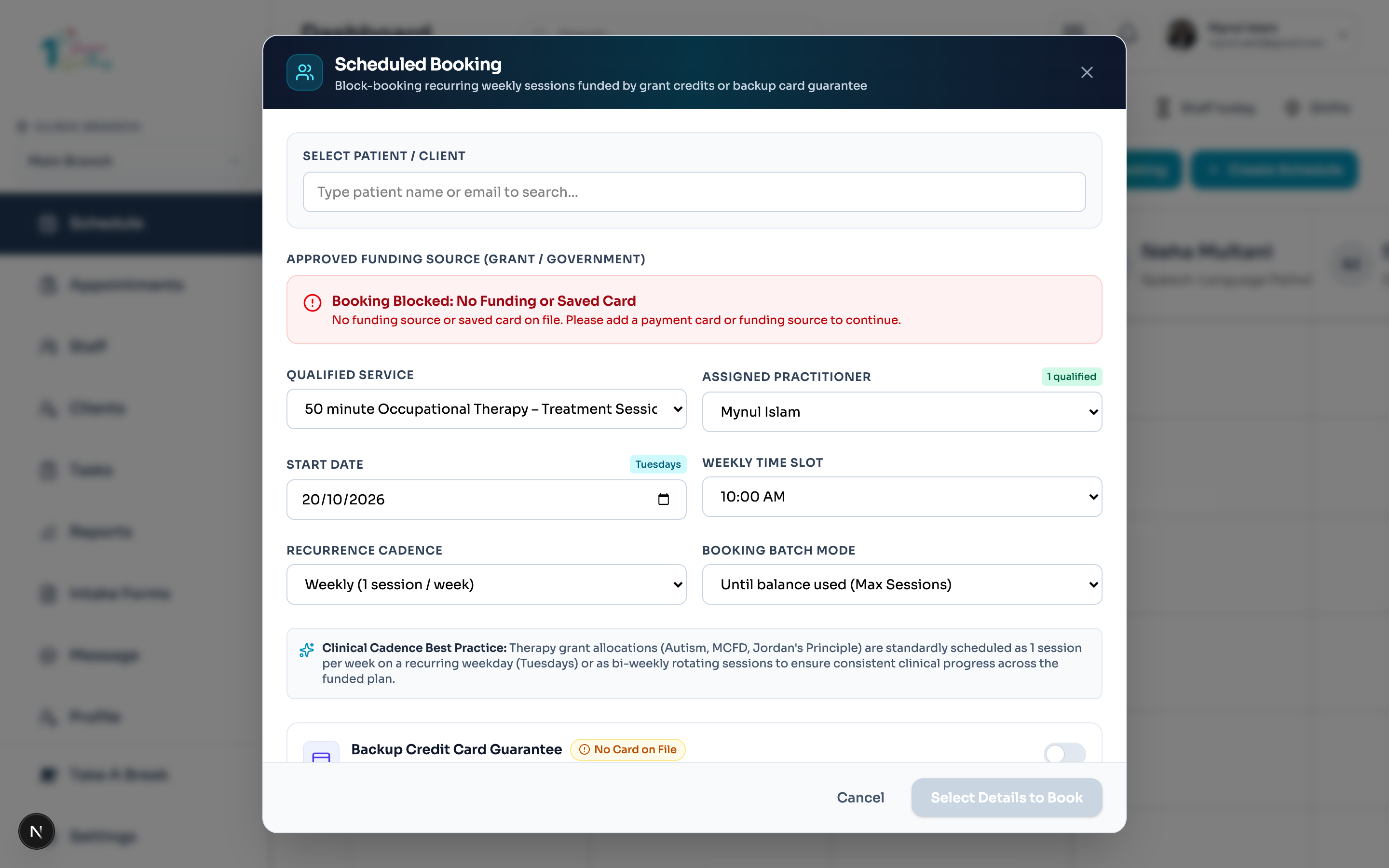
Click the teal gradient 'Scheduled Booking' button on the dashboard header.
The Batch Booking modal opens, allowing you to select recurrence frequency (Weekly, Bi-weekly, or Specific Dates).
Choose the service, practitioner, and target start/end dates.
Review the generated appointment slots. Emmai automatically checks against practitioner working hours and existing bookings.
Confirm the batch reservation. All sessions are created and synced across the calendar simultaneously.
Scheduling Custom Breaks on the Calendar
Staff can schedule dedicated break blocks (e.g. lunch, team meetings, admin time) directly on a practitioner's column by using the 'Add Custom Break' modal.
Was this guide helpful?
Your feedback helps our clinical documentation team improve.