Staff Management, Practitioner Roster & Schedules
The Staff Directory & Management Hub
The Staff Hub (/dashboard/staff) allows clinic administrators to oversee practitioners and administrative staff across all branches, filter by department, launch practitioner onboarding with '+ Add Practitioner', and manage individual working profiles.
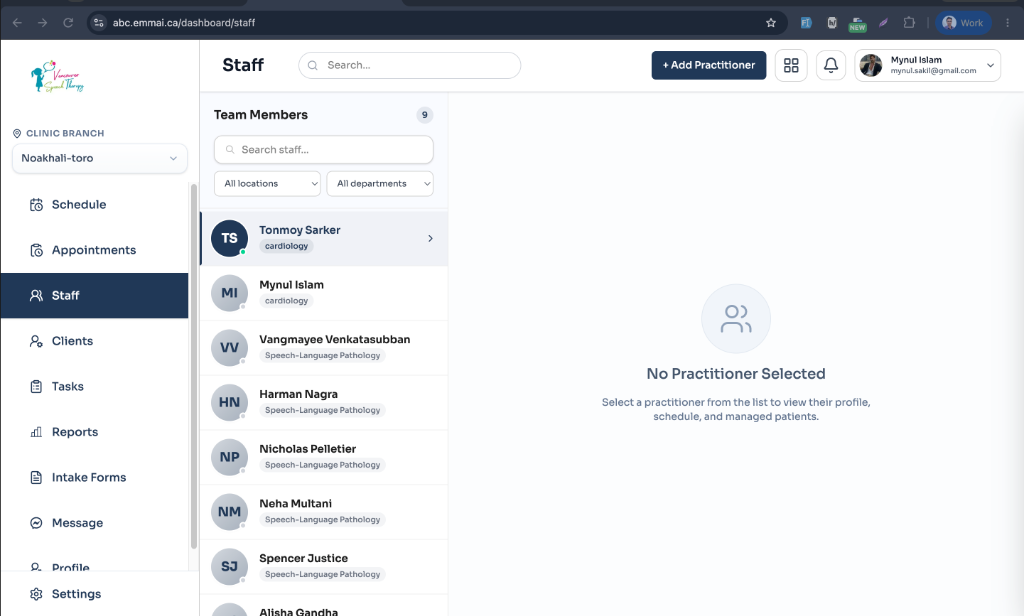
Navigate to Dashboard > Staff from the main navigation.
Use the Search bar or Branch & Department filters at the top to isolate specific practitioners or teams.
Click '+ Add Practitioner' to open the practitioner onboarding modal with branch and service assignments.
Click on any staff member to open their complete workspace tabs: Profile, Schedule, Availability, Patients, Time Off, and Permissions.
Updating Essential Practitioner Details (Profile Tab > Edit)
When a clinician acquires new qualifications, expands into additional branch facilities, or changes contact information, administrators can update their profile in seconds:
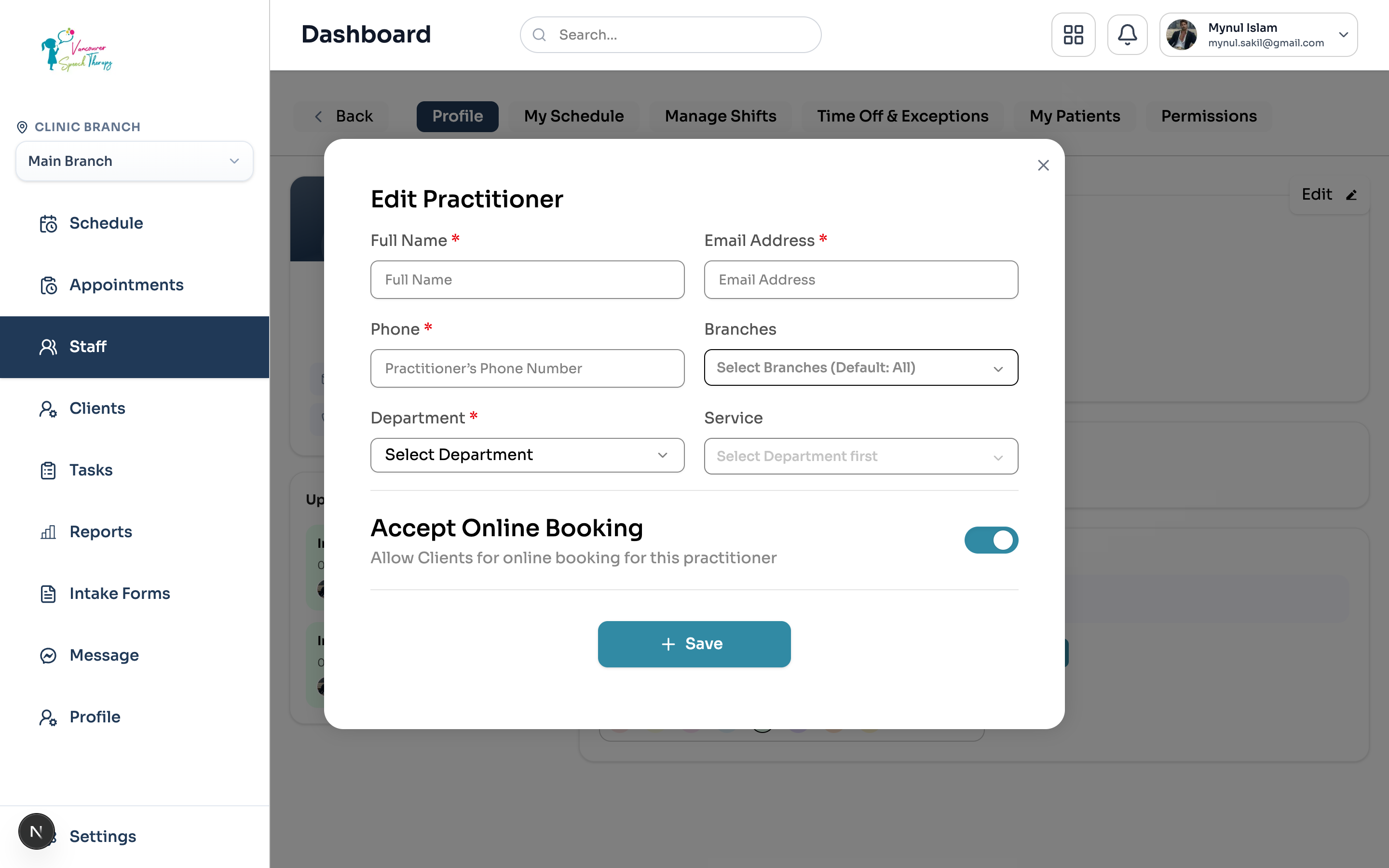
From the Staff Directory (/dashboard/staff), click on any practitioner card to open their profile dashboard.
On the 'Profile' tab, click the 'Edit ✏️' button located in the upper right corner of the overview card.
Update essential fields: Full Name, direct Phone number, primary and secondary Branches, Department, and assigned Services.
Manage Online Booking: Toggle 'Accept Online Booking' on or off to control patient self-scheduling.
Click '+ Save'. Note that only the Clinic Owner can modify a staff member's login email address.
Configuring Recurring Shifts & Custom Breaks
Each clinician's schedule can be tailored per branch location:
Multi-Branch Working Hours
Select the practitioner and click the 'Schedule' tab.
Define recurring weekly shift hours for each assigned branch (e.g., Vancouver Clinic on Mon/Wed/Fri, Burnaby Clinic on Tue/Thu).
Add recurring break blocks (such as lunch or administrative charting hours) to prevent online bookings during downtime.
Granular Permission Overrides
While standard roles (Owner, Admin, Practitioner, Front Desk, Billing) establish baseline system access, the 'Permissions' tab allows clinic owners to grant or revoke specific operational capabilities on a per-staff basis:
Select the staff member and navigate to the 'Permissions' tab.
Toggle granular capabilities: Override Cancellation Policy, View All Clinical Notes, Issue Manual Refunds, or Manage Clinic Services.
Changes apply immediately to the user's active session without requiring account re-creation.
Was this guide helpful?
Your feedback helps our clinical documentation team improve.