How to Invite Practitioners & Onboard Clinical Staff
The '+ Add Practitioner' Onboarding Wizard
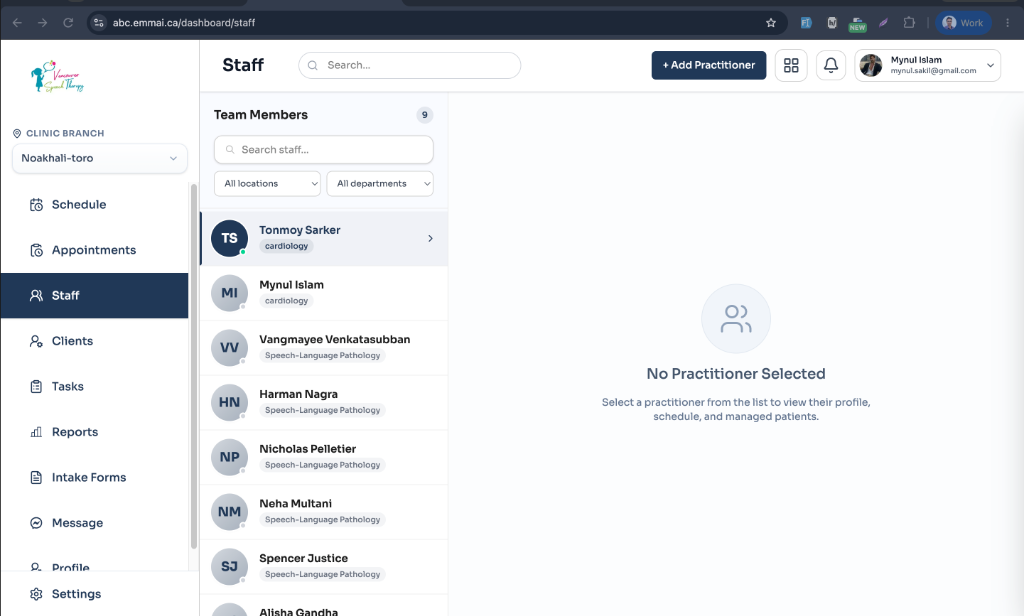
To onboard healthcare providers, therapists, and clinicians, clinic administrators and owners launch the comprehensive practitioner wizard directly from the Staff Directory (/dashboard/staff) or User Management (/dashboard/settings/users):
Seat Quota Check
Navigate to Dashboard > Staff (/dashboard/staff) or Settings > Users (/dashboard/settings/users).
Click the prominent '+ Add Practitioner' button in the upper right header.
Enter the practitioner's Full Name, professional Email address, and Direct Phone Number.
Select the Practitioner Type: Full-Time, Part-Time, or Independent Contractor.
Allocating Branches, Departments & Clinical Services
Unlike standard administrative accounts, clinicians must be linked to specific physical facilities, medical departments, and qualified services:
Assign Primary Home Branch: Select the clinician's home practice facility (e.g., Downtown Clinic, Burnaby Health Centre).
Allocate Secondary Facilities: Check off additional physical clinics or virtual telehealth hubs where this clinician is authorized to treat patients.
Select Department & Medical Specialty: Associate the clinician with their specialized department (e.g., Speech-Language Pathology, Physiotherapy, Clinical Psychology).
Assign Qualified Treatment Services: Check the specific services the practitioner is credentialed to offer. Rates and durations synchronize automatically.
Set Facility Timezone: Working hours and appointment schedules align with the assigned branch's local IANA timezone.
Initial Shifts & Online Booking Visibility
Establish the clinician's baseline availability and patient-facing booking visibility:
Select Regular Working Days: Choose regular days of the week (Monday through Sunday) the clinician will be available for consultations.
Toggle Online Booking: Decide whether clients can self-schedule appointments with this practitioner on the clinic's public booking portal.
Private / By-Referral-Only Mode: Keep Online Booking disabled if the practitioner exclusively accepts direct client referrals or requires front-desk manual booking.
Click 'Send Invitation'. Emmai initializes the clinician record in 'Pending' status, links their facility allocations, and dispatches the onboarding email.
Updating & Editing Practitioner Profiles ('Edit Practitioner' Modal)
Clinic administrators and owners can update essential clinical, operational, and contact information for any team member at any time from the Staff Hub without recreating their profile:
Owner-Only Email Modification
Navigate to Dashboard > Staff (/dashboard/staff) from the main sidebar.
Click on the practitioner card in the staff roster to open their workspace, and verify the 'Profile' tab is selected.
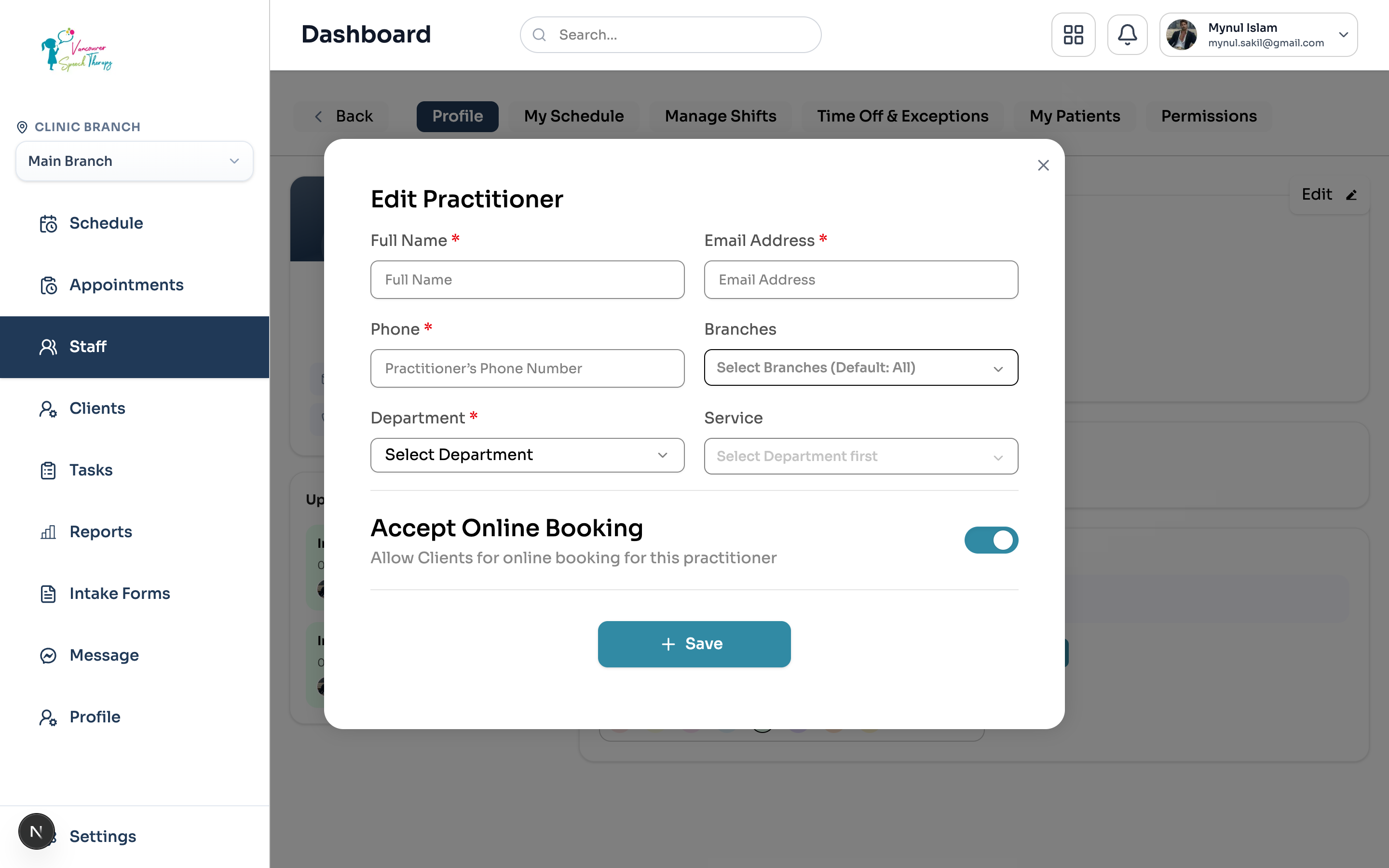
Click the 'Edit ✏️' button located in the upper right corner of the profile summary card.
The 'Edit Practitioner' modal opens with all current settings pre-populated:
• Full Name *: Update the practitioner's legal name or clinical title.
• Email Address *: View or update the account email address (see security rule below).
• Phone *: Modify direct phone contact information.
• Branches: Add or remove clinic facility locations via the multi-select dropdown (e.g. assigning Vancouver Clinic or Burnaby Health Centre).
• Department *: Update the practitioner's medical specialty department (e.g., Cardiology, Speech-Language Pathology, Physiotherapy).
• Service: Select or deselect specific clinical services this practitioner is authorized to provide under the selected department.
• Accept Online Booking: Toggle whether patients can self-schedule visits with this clinician on the public online booking portal.
Click '+ Save'. Emmai commits updates immediately to the database, updating branch availability grids, service catalogs, and patient booking flows in real time.
The Invitation Email & Account Activation Flow
Once dispatched, the recipient receives a branded invitation email ('Welcome to [Clinic Name]! You are invited as a Doctor/Practitioner to join [Clinic Name]'). Emmai automatically handles both existing and new users:
Multi-Clinic Practice Support
Scenario A: User Already Has an Emmai Account — The clinician opens the invitation email and clicks 'Go to Portal'. When they log in with their existing Emmai credentials, the platform instantly links their existing account to your clinic without creating duplicate accounts or conflicting passwords.
Scenario B: First-Time User (New to Emmai) — The clinician's profile initializes in 'Pending' status. They click the secure activation link in the email, which takes them to the account setup portal to choose a secure password and activate their profile.
Automatic Status Synchronization: As soon as the clinician activates or signs in, their account status immediately updates from 'Pending' to 'Active' across Staff and User Management directories.
Customizing Granular Permission Overrides
While the 'Doctor / Practitioner' base role automatically provides core clinical capabilities (viewing assigned appointments, telehealth, SOAP notes), clinic administrators can grant or revoke specific operational permissions:
Override Precedence
Open Permissions: From /dashboard/staff, click the clinician's profile card and select the 'Permissions' tab (or select 'Manage Permissions' from the user table actions menu in /dashboard/settings/users).
Toggle Granular Privileges: Grant or deny capabilities such as 'View All Patient Records', 'Override Cancellation Fee Policy', 'Modify Clinical Fee Schedules', or 'Issue Manual Refunds'.
Real-Time Session Refresh: Permission overrides take effect immediately in the database and refresh the clinician's active session token without requiring a page reload.
Was this guide helpful?
Your feedback helps our clinical documentation team improve.