Direct Clinic ↔ Client Conversations & Document Sharing
Two-Way Clinic & Patient Communication
Patients can communicate directly with your clinic team before, during, and after their treatment journey. Whether a patient is clarifying pre-appointment guidelines, requesting appointment rescheduling, or submitting medical documentation, Emmai's chat engine routes all patient inquiries into your clinic's central communication stream.
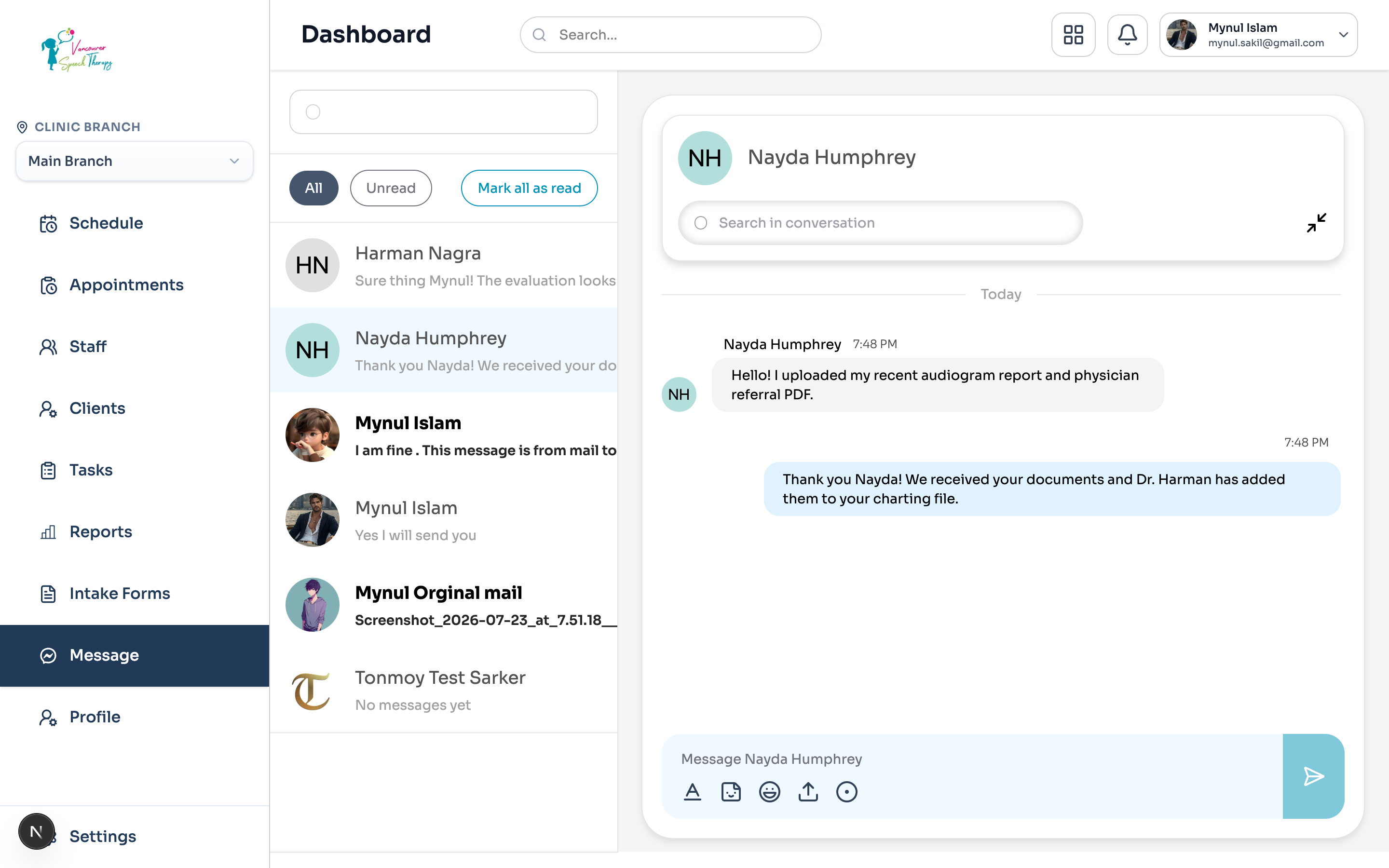
Two Complementary Access Touchpoints
Clinic staff can manage client conversations from two integrated locations across Emmai:
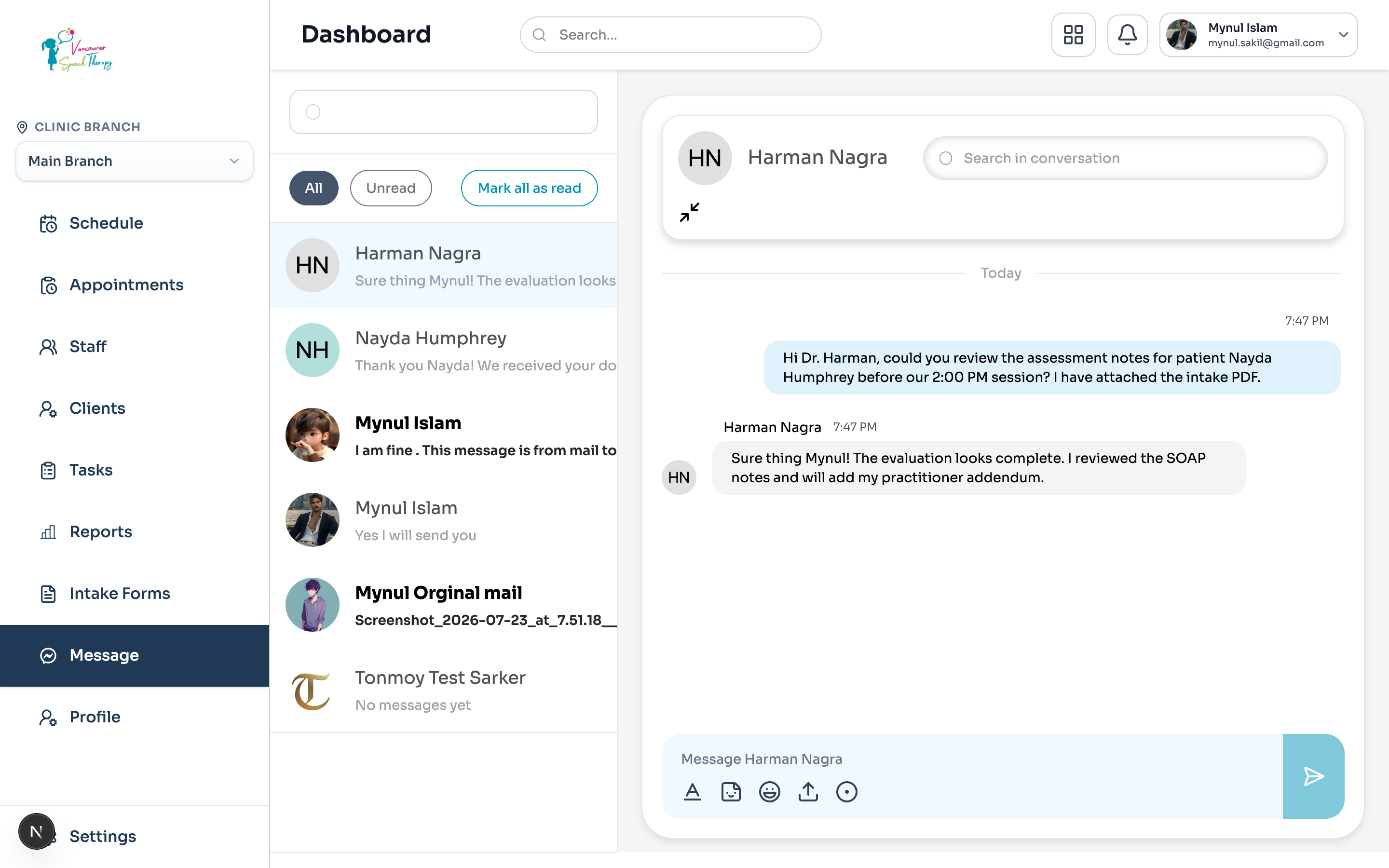
The Central Messages Hub (/dashboard/messages): Your clinic-wide communication inbox. It presents all active patient and colleague conversations in a unified left sidebar. Staff can toggle between 'All' conversations and 'Unread' threads, view unread notification counters, and use 'Mark all as read' to clear alerts across the practice.
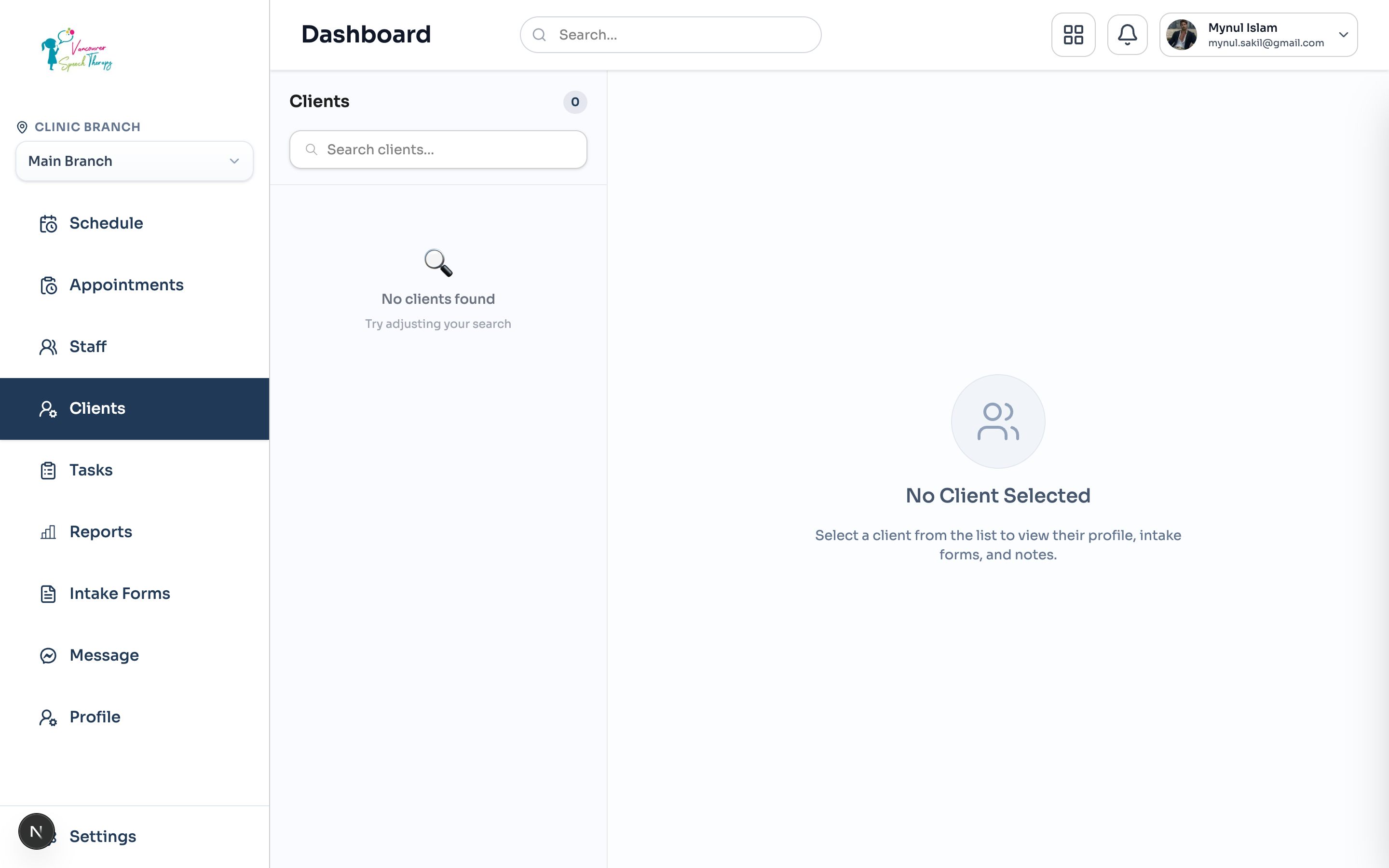
Client Profile > Conversation Tab (/dashboard/clients): When viewing a patient's comprehensive chart in the Clients directory, the Conversation tab sits right alongside their Profile, Intake Forms, Clinical Notes, Document Vault Files, and Billing history. This enables practitioners to review recent client messages without losing clinical context.
Sending Clinical Photos, PDFs, and Necessary Documents
Secure digital file sharing eliminates cumbersome paper intake forms and insecure email attachments:
Real-Time Polling & Unread Badges
Patient Submission: Clients can upload photos of their government-issued ID, private health insurance cards, doctor referral letters, and past audiogram or lab reports directly through the chat window.
Enforced File Validation: Emmai validates all uploads on both frontend and backend. Files must be valid PDFs, Word (.doc/.docx), Excel (.xls/.xlsx), or web images (PNG, JPEG, WEBP) under 10 MB.
Automatic Chart Storage: Any document or image uploaded in a client chat thread is permanently archived and linked to the patient's record in the PostgreSQL database.
Interactive Viewing: Staff can click on any image attachment to open an instant full-screen lightbox for close examination, or click any PDF attachment to download and import it into clinical SOAP notes.
Clinic Communication Best Practices
Guidelines for maintaining professional, compliant client communications:
Acknowledge Document Submissions Promptly: Send a brief confirmation when a client uploads referral PDFs or insurance cards, letting them know their files were received and added to their chart.
Use Formatting for Clarity: Use the message formatting bar (bold, italic, lists) to emphasize appointment dates, arrival times, and preparation instructions.
Maintain Professional Boundaries: Client conversations are part of the medical record. Ensure all communications adhere to professional standards and clinic privacy policies.
Was this guide helpful?
Your feedback helps our clinical documentation team improve.